Showing posts with label Gradient Map With Photoshop. Show all posts
Showing posts with label Gradient Map With Photoshop. Show all posts
Wednesday, November 18, 2015
Gradient Map with Photoshop
Photoshop has a number of built in Gradients. You can always modify them. You can also download Gradients for free which you can use.
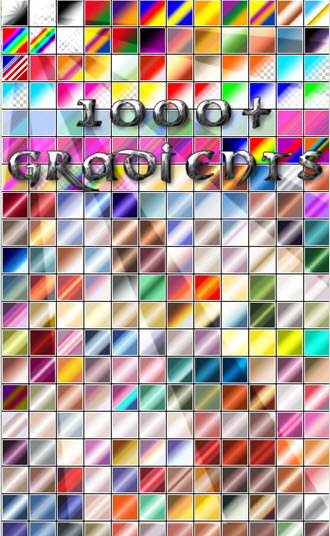
Here is a load of free Gradients. You will find them here
They are made provided free by ~Lebo Gfx Khalil You will only have to register. Registration is free.

Step 1 : You will find the Download button on the right of the page. Click it to download. Download it to a folder on your computer.

Step 2 : I have download the Gradient to a folder on my computer. The Gradients are in a rar file. You will require Winrar to unzip it.

Step 3 : Right Click the rar file and click on Extract here.

Step 4 : You will find the Gradients in a folder.

Step 5 : Click the folder to open. Here are the Gradients. Press CTRL+A (Select ALL), then CTRL+C (Copy)

Step 6 : The Gradients have been selected. They are ready to be copied.

Step 7 : Click on My Computer and go to the Hard Drive on which Photoshop is installed. It usually is on the C Drive. Click on C Drive.

Step 8 : Click on Programme Files.

Step 9 : Click on Adobe.

Step 10 : Click on the version of Photoshop you have.

Step 11 : Go to Presets.

Step 12 : Click on Gradients.

Step 13 : Right Click and Paste.

Step 14 : The downloaded Gradients are now loaded in photoshop.

Step 15 : Open Photoshop. Click on the Gradient Tool and then click the Gradient Editor at the top panel.

Step 16 : And the Gradients have been installed. Should you not see the Gradients, click on the Load button.

Step 17 : Click on Load and navigate to the folder where you unpacked the Gradients. Load them one by one. Now you are set to go.

Step 18 : I am choosing this free stock photo. You will find it here
It belongs to *faestock Jessica

Step 19 : I have opened the photo in Photoshop.

Step 20 : Click Add New Fill or Adjustment Layer button.

Step 21 : Click on Gradient Map.

Step 22 : Click on the Gradient Editor.

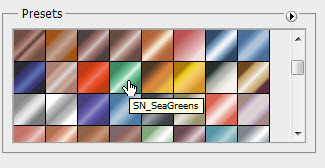
Step 23 : You will find all the original and downloaded Gradients among the Presets.

Step 24 : I have clicked on a Preset. It has a name.

Step 25 : This is how the image looks.

Step 26 : Change the Blend Mode to Overlay.

Step 27 : This is how the image looks.

Step 28 : Lower the Opacity of the Layer. I have reduced it to 65%.

Step 29 : This is how the image looks.

Step 30 : You can click the Gradient Editor to change the Gradient if you wish.

Step 31 : I have not clicked on this Gradient.

Step 32 : This is how the image looks.

Step 33 : I have now clicked on this Gradient.

And this is how the image looks. You can experiment with all the new Gradients.
Step 34 : I have clicked on another Gradient.

This is how the image looks. You can go on experimenting
Other photoshop tutorials are here

Subscribe to:
Posts (Atom)